Practice Assignments
Create and manage practice assignments to keep your students on track between lessons.
Navigating to Practice Assignments
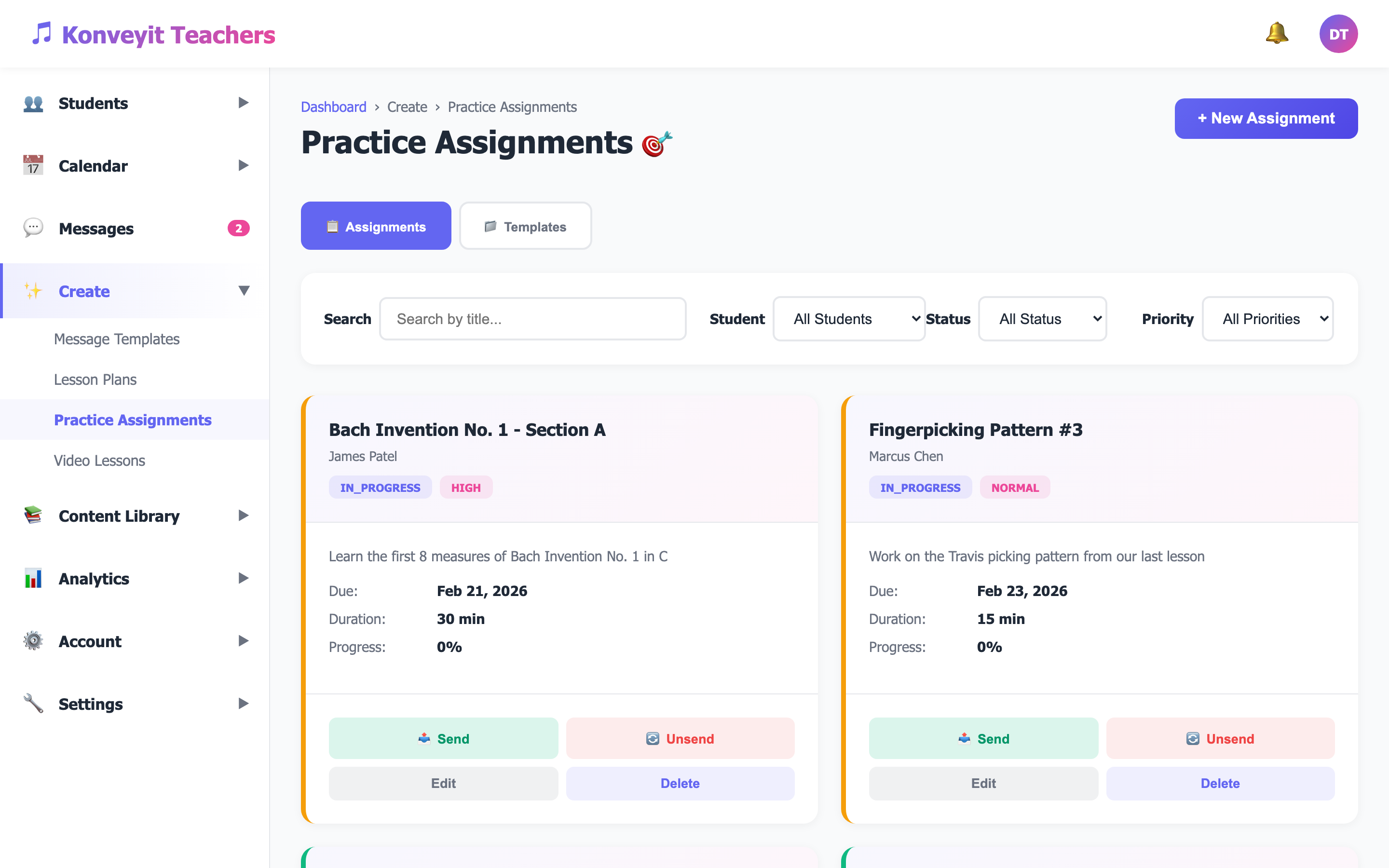
From the sidebar, go to Create > Practice Assignments. This is your central hub for creating, managing, and tracking all practice assignments. You'll see existing assignments with their status, priority, and progress. Use the tabs to switch between Assignments and Templates.
Creating a New Assignment
Click the "+ New Assignment" button to create a new practice assignment. Fill in the assignment title (e.g., "C Major Scale - Hands Together"), select the student, set a due date, estimated practice duration, and priority level (High, Normal, Low). Add detailed instructions in the description field to guide your student's practice.
Attaching Resources
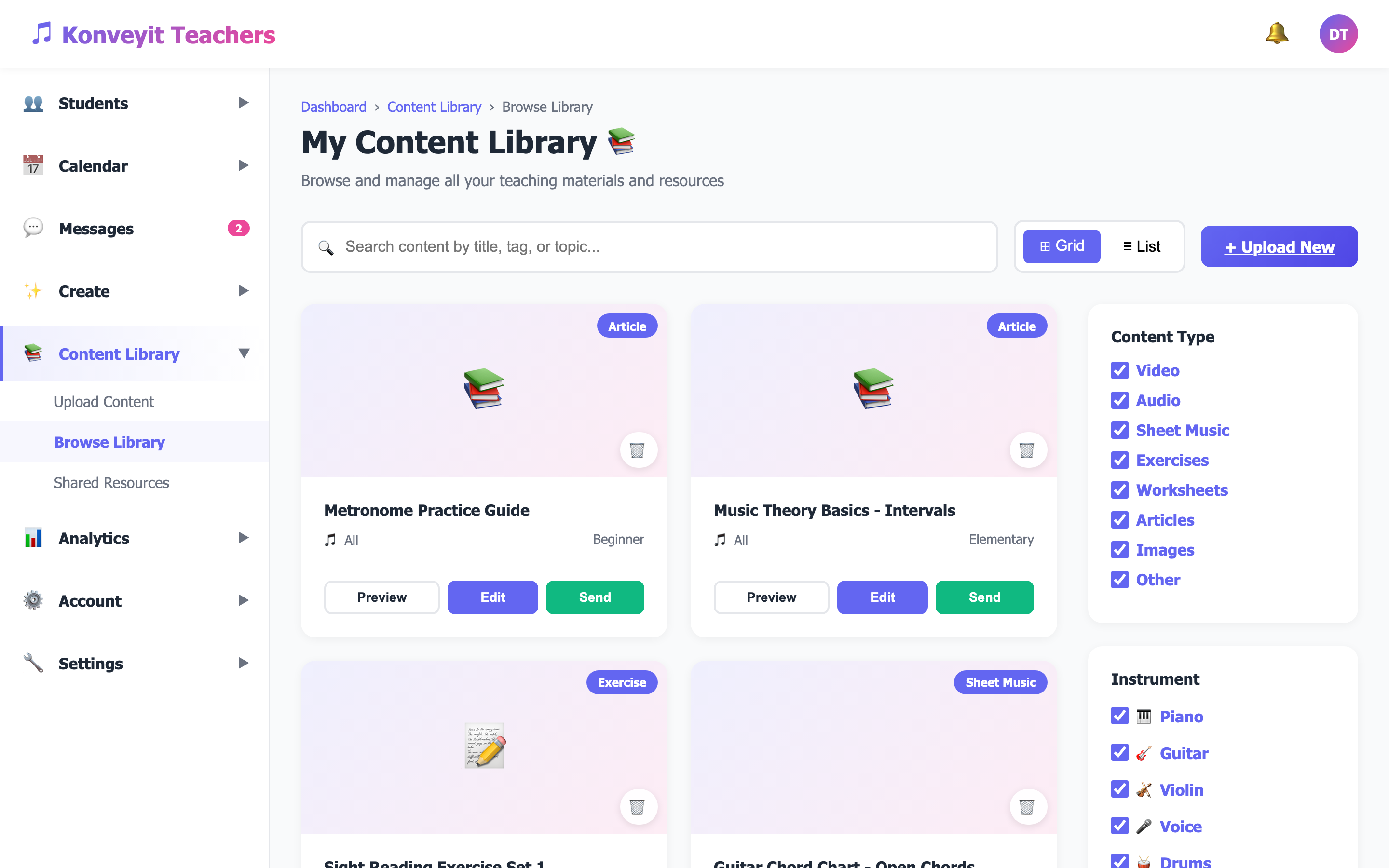
Enhance your assignments by attaching resources from your Content Library. You can link sheet music PDFs, audio recordings, video demonstrations, or exercise files. This gives students everything they need in one place. Students can access attached resources directly from their assignment view in the student portal.
Sending Assignments to Students
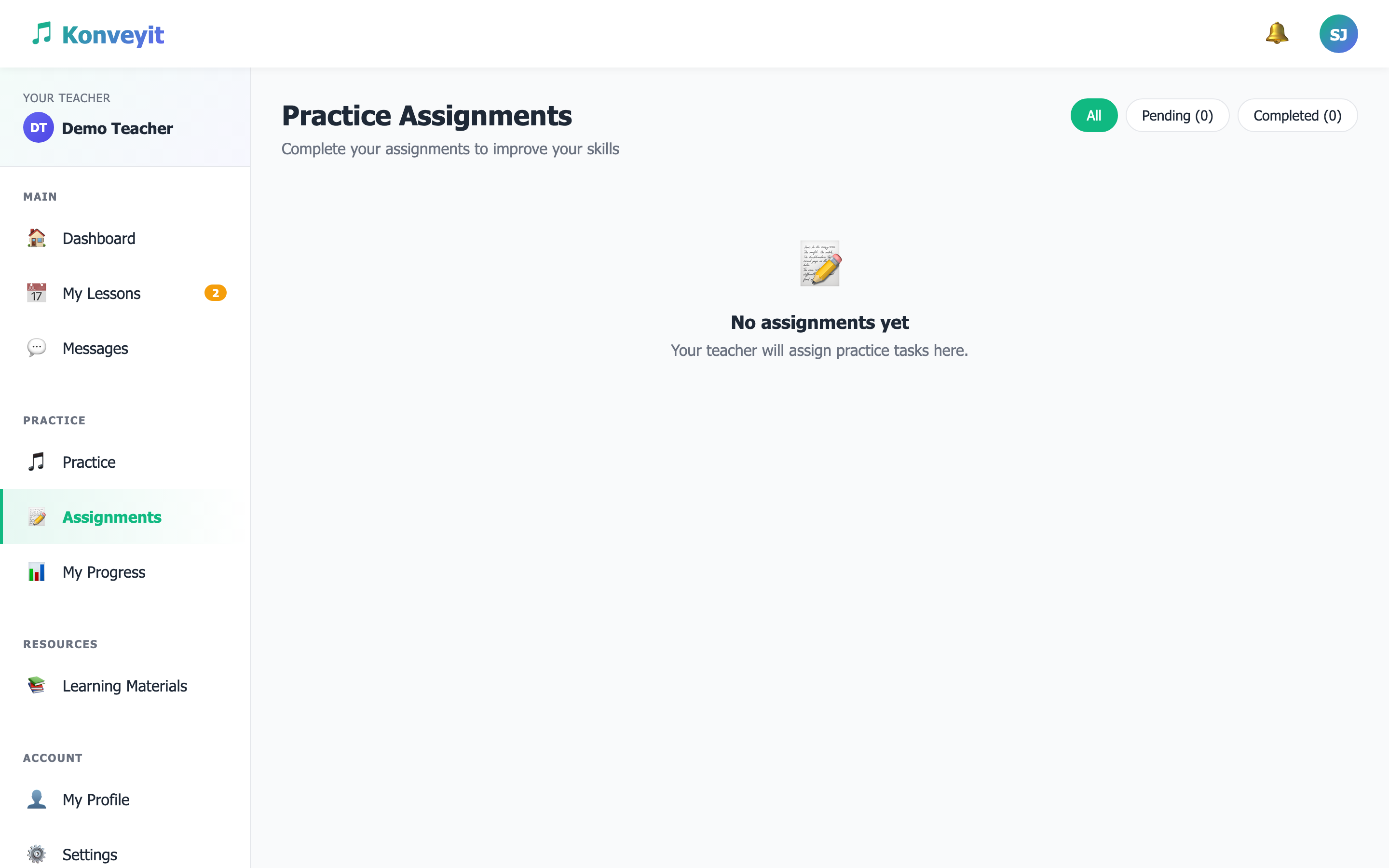
Once your assignment is ready, click the "Send" button to deliver it to the student. The assignment will appear in their student portal under the Assignments section. Students receive a notification and can view the full assignment details, instructions, and any attached resources.
Tracking Student Progress
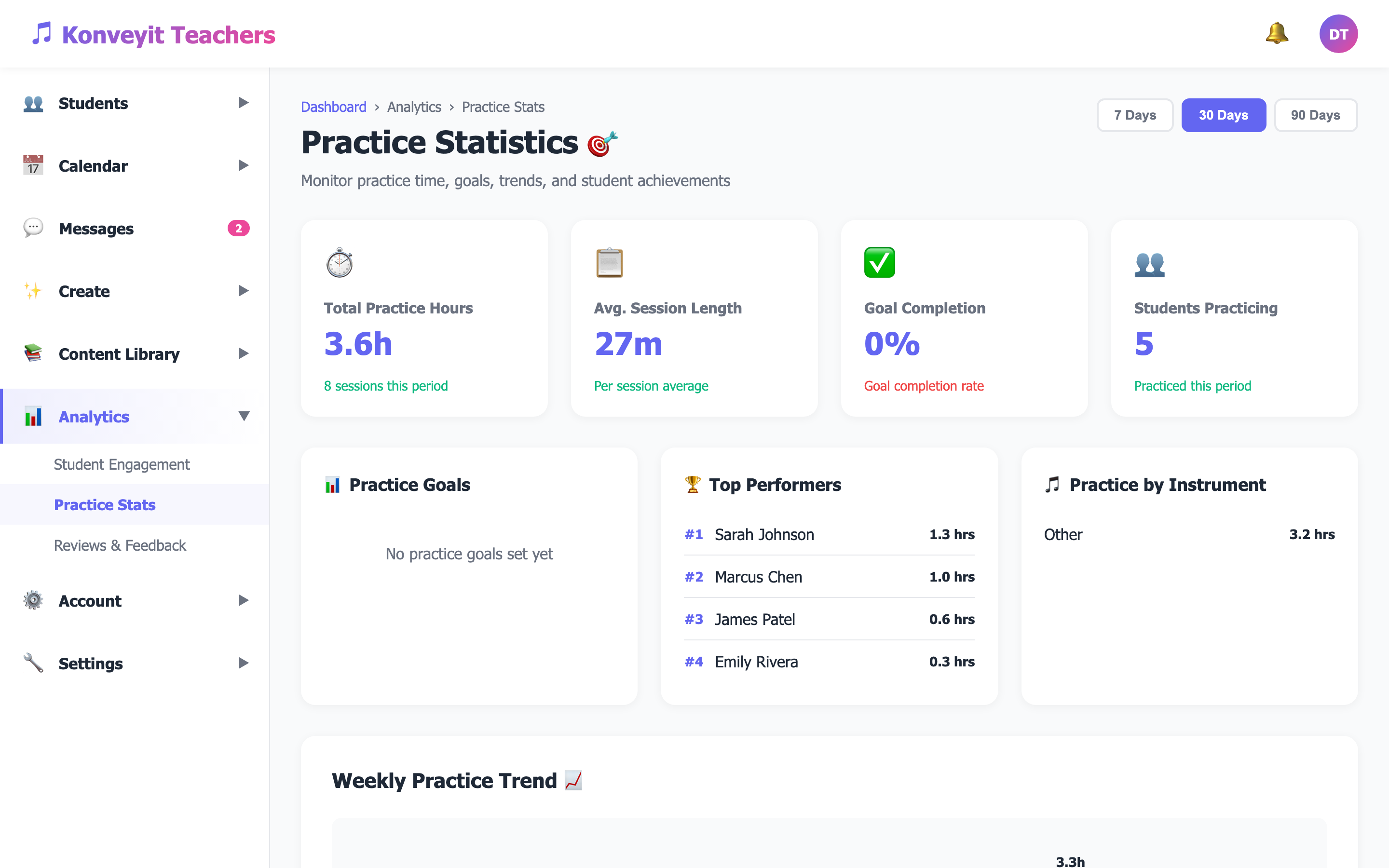
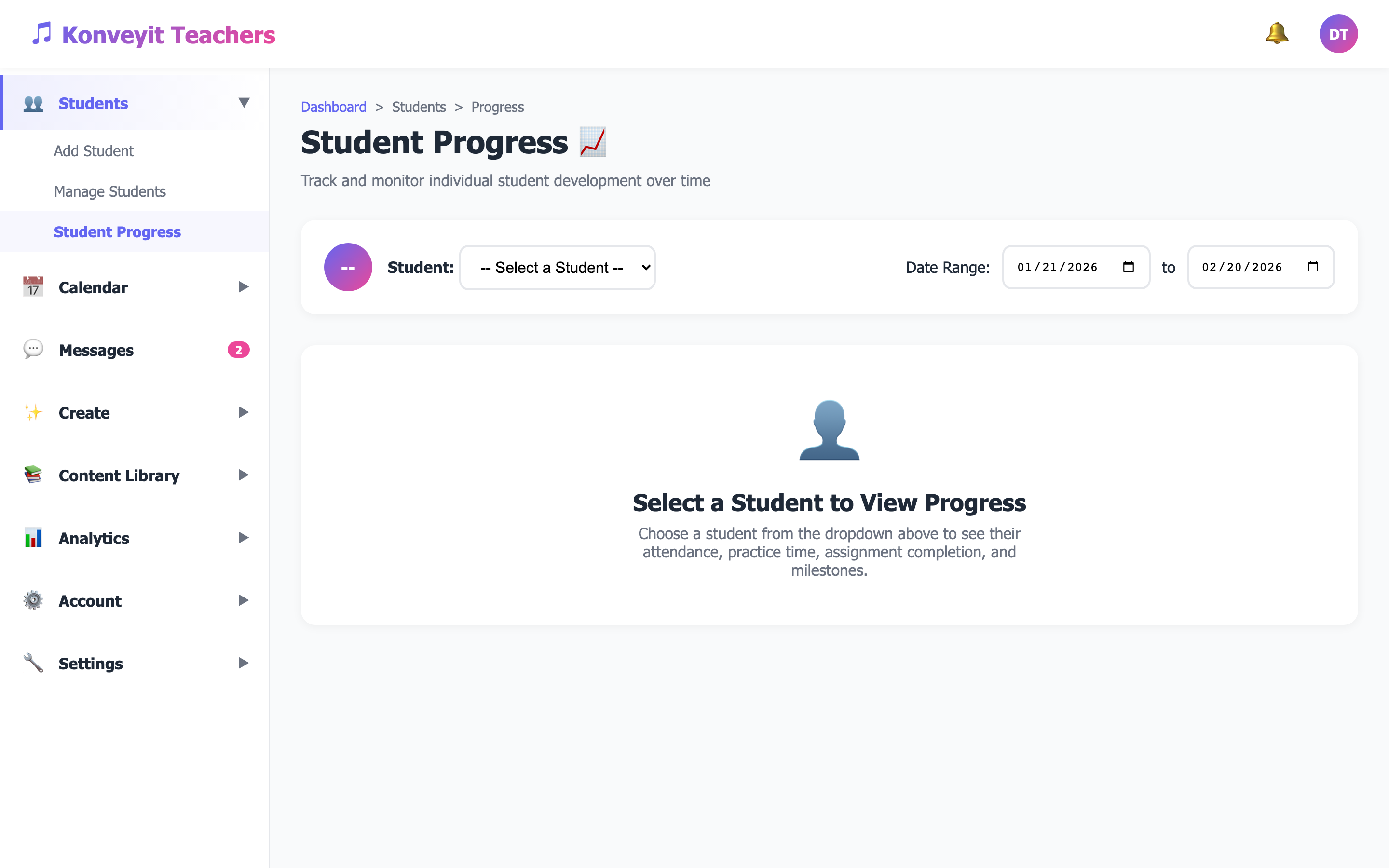
Monitor how your students are progressing with their assignments from the Student Progress page. See which assignments are completed, in progress, or overdue. The Practice Stats page under Analytics gives you a broader view of practice patterns and engagement across all your students.
Reviewing Practice Logs
When students complete practice sessions related to their assignments, their logs appear in the Practice Stats analytics. You can see duration, quality ratings, mood, and notes for each session. This data helps you adjust future assignments and tailor your teaching approach.