Quick Start Guide
Get up and running with Konveyit Teachers in just a few minutes
⏱️ 5 min read
1
Sign In to Your Account
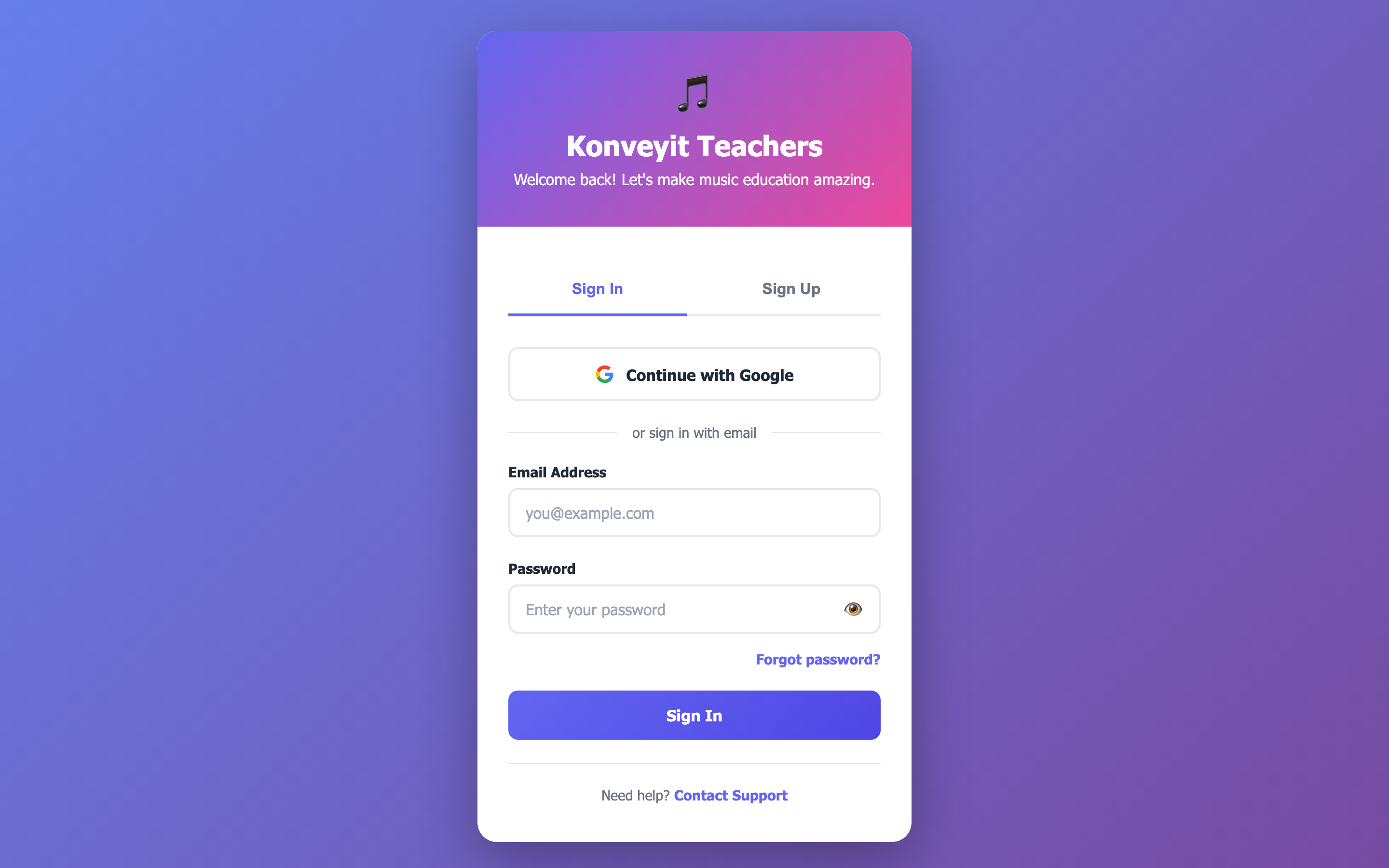
After creating your account, sign in at the login page. You'll see the Konveyit Teachers login where you can use your email and password or Google sign-in.
Tip: Bookmark your dashboard URL for quick access: konveyit-teacher.com/konveyit-dashboard.html
2
Explore Your Dashboard
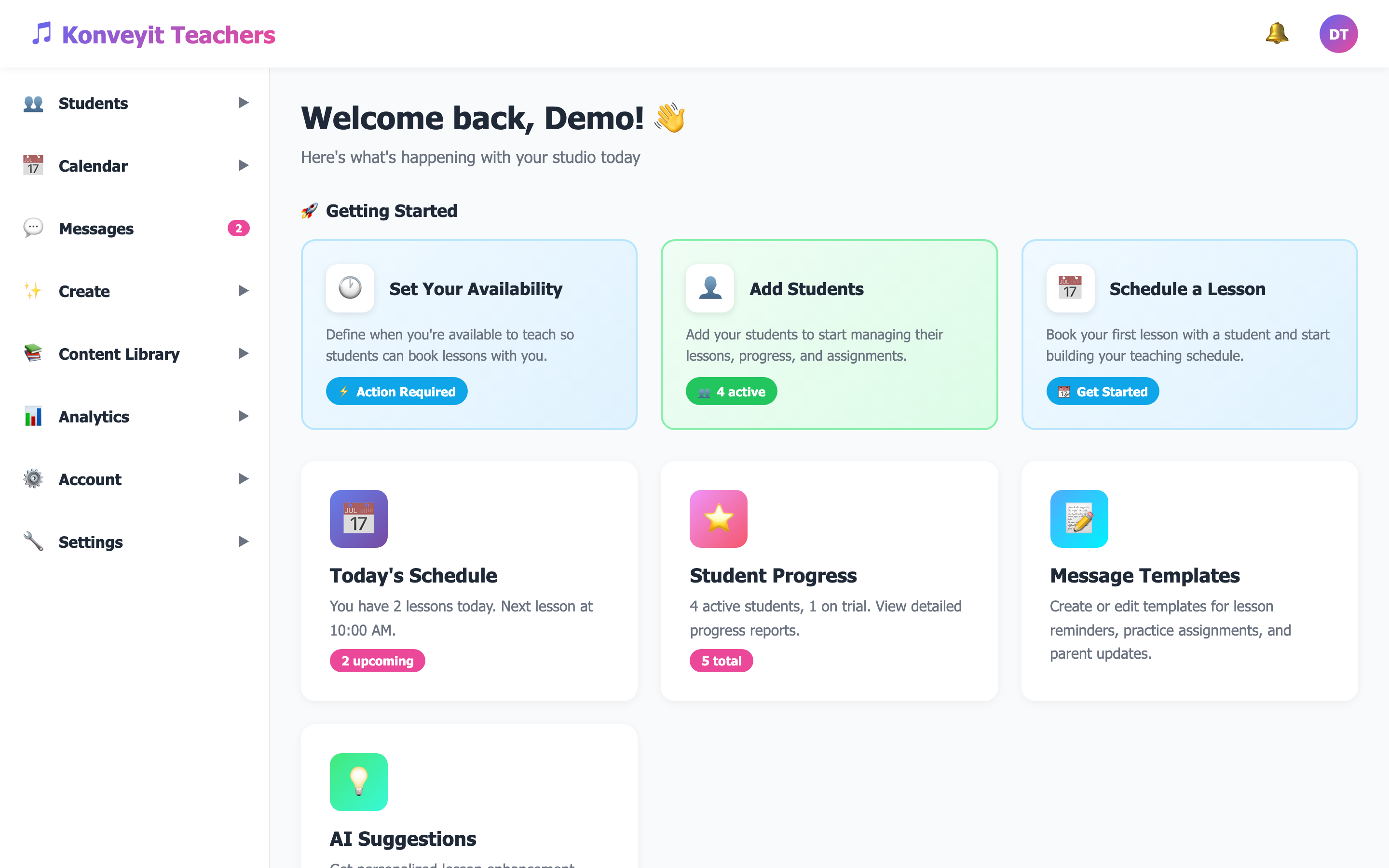
Once logged in, you'll land on your personalized dashboard. Here you'll find Getting Started cards, your today's schedule, student progress overview, and quick action buttons. The sidebar on the left gives you access to all features.
Tip: Complete the Getting Started cards to set up your account — they'll guide you through the essential first steps.
3
Add Your Students
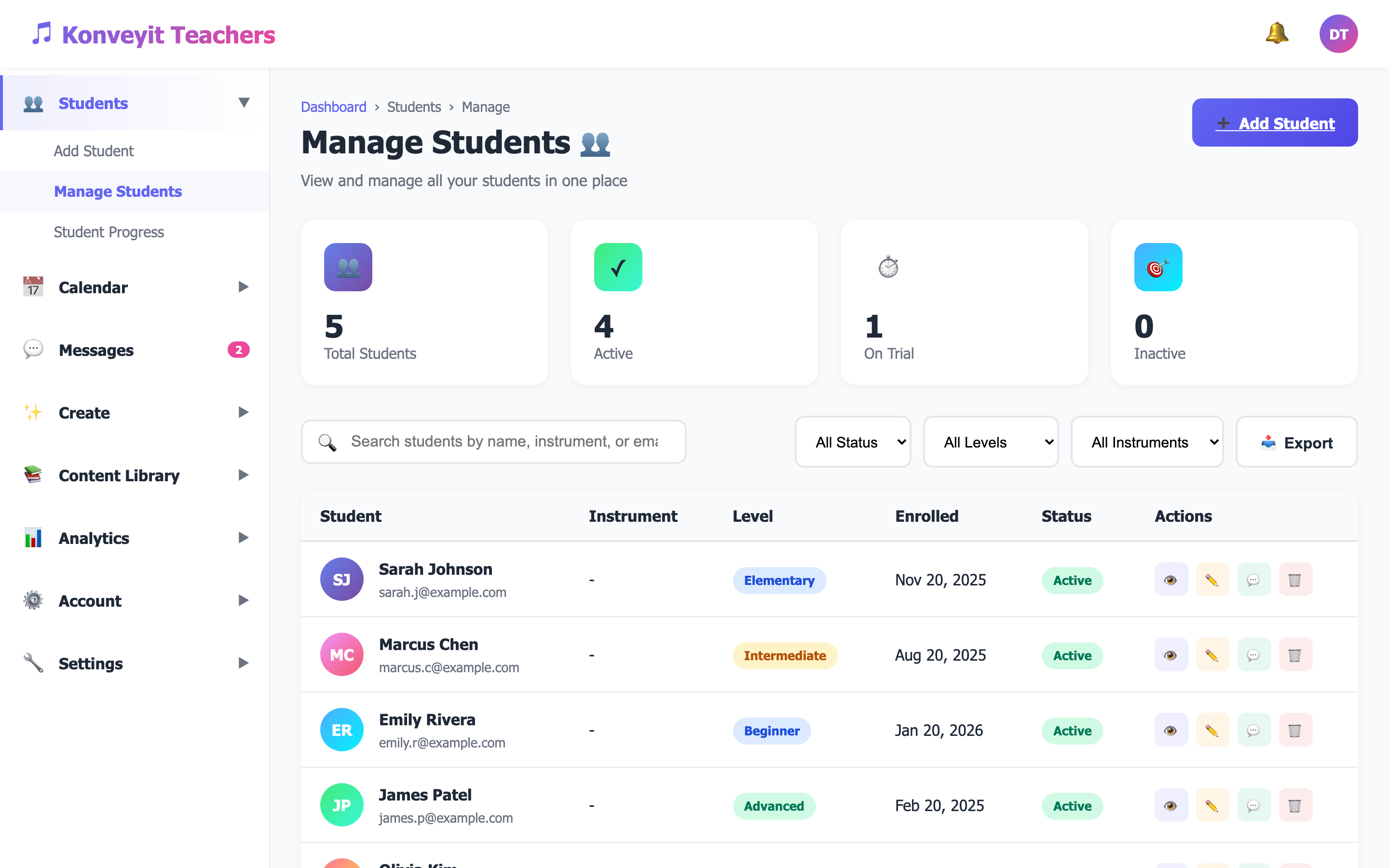
Navigate to Students > Add Student from the sidebar. Fill in their name, email, instrument, and skill level. Once added, students appear in your Manage Students list where you can view, edit, or message them.
Tip: You can import multiple students at once using the CSV import feature on the Manage Students page.
4
Set Your Availability
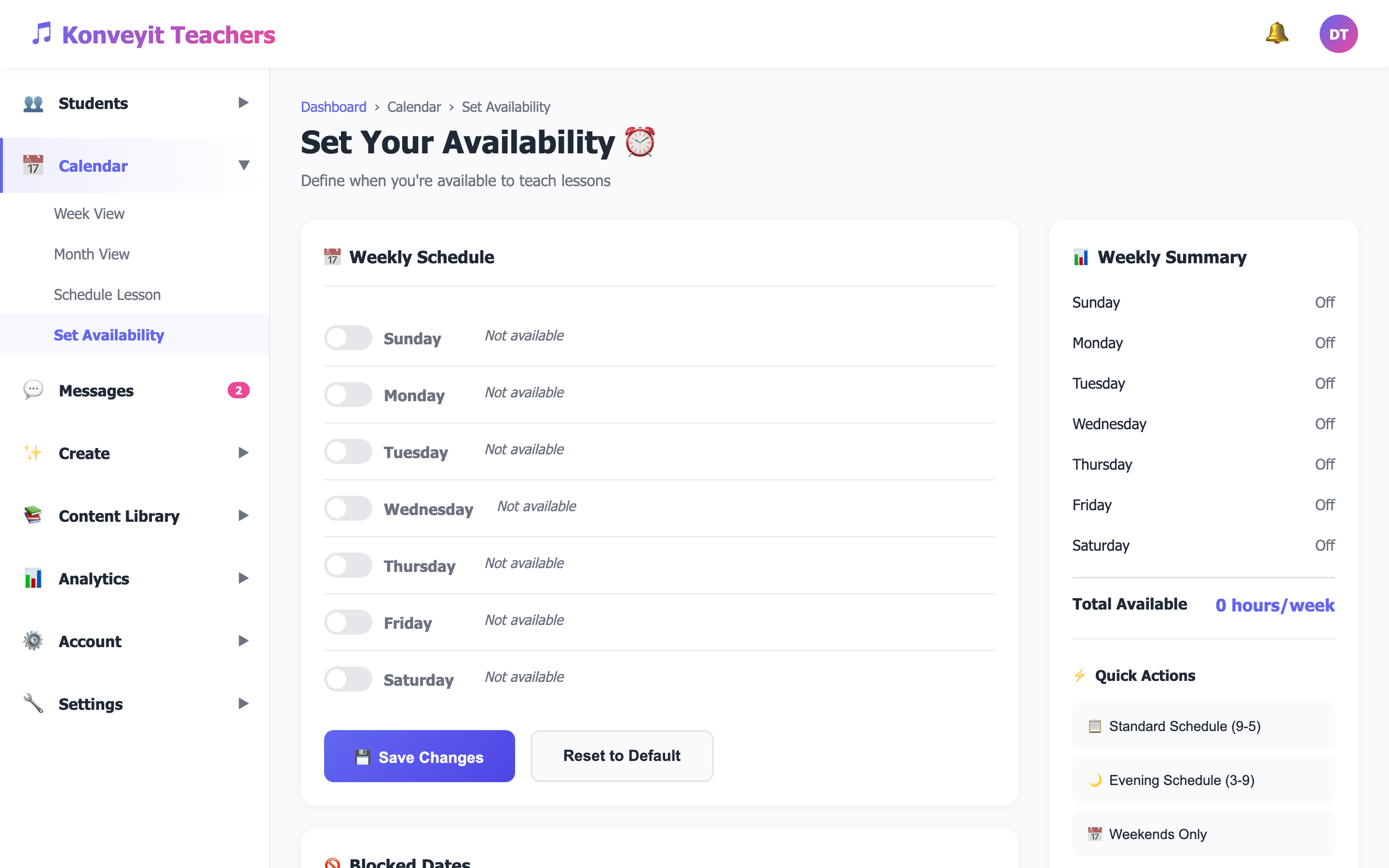
Go to Calendar > Set Availability to define when you're free to teach. Set your weekly recurring schedule with specific time blocks for each day. Students can then book lessons during your available times.
Tip: You can also block specific dates for holidays or time off using the blocked dates feature.
5
Schedule Your First Lesson
Navigate to Calendar > Schedule Lesson or use the Calendar Week View to schedule a lesson. Select a student, choose the date and time, set the duration, and add any notes about the lesson topic.
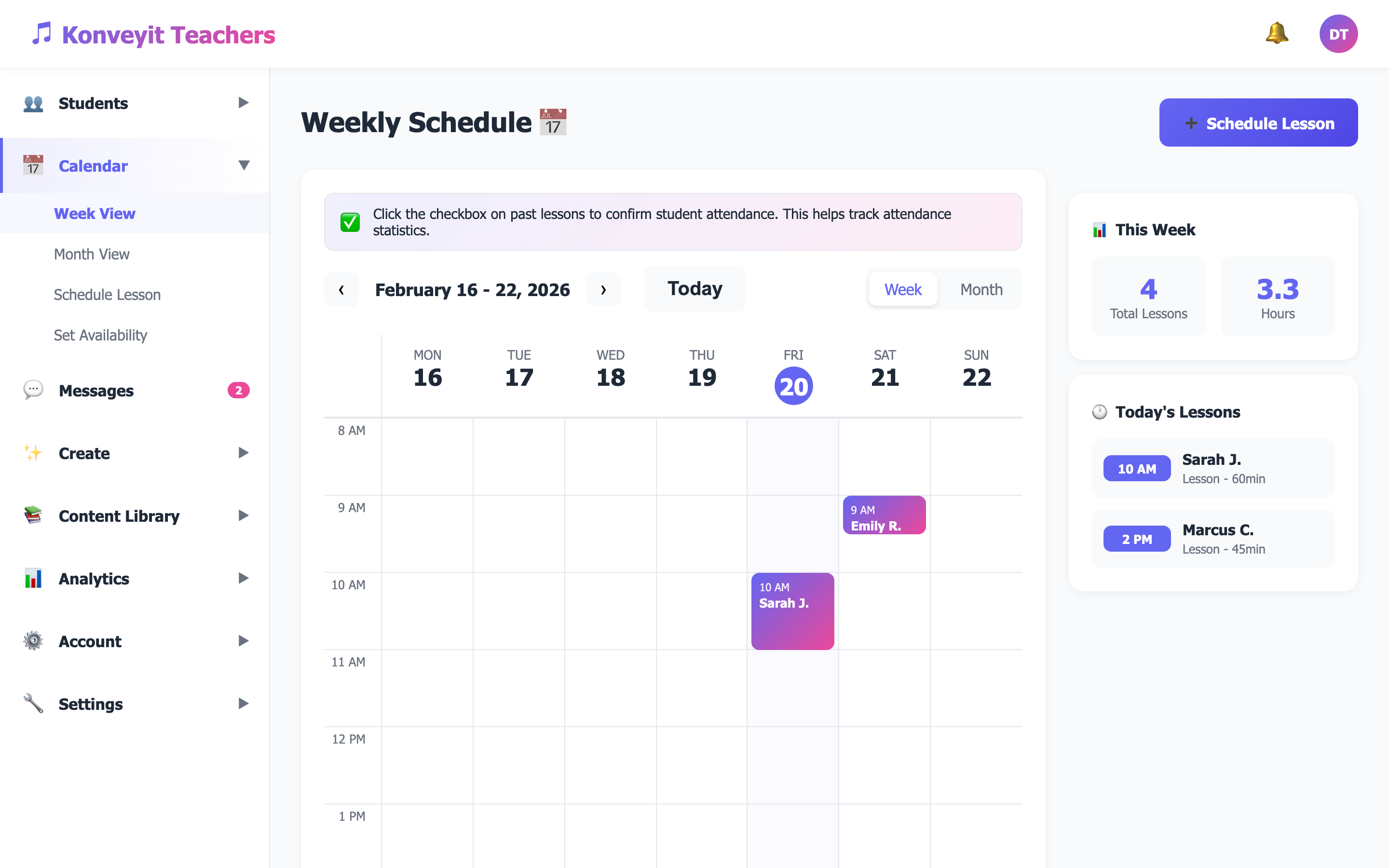
Tip: Lessons can be set as recurring (weekly, biweekly, monthly) so you don't have to schedule them individually each time.
6
Set Up Your Content Library
Head to Content Library > Upload Content to start building your teaching resource library. Upload sheet music PDFs, audio recordings, video lessons, and exercises. Tag and categorize them for easy searching.
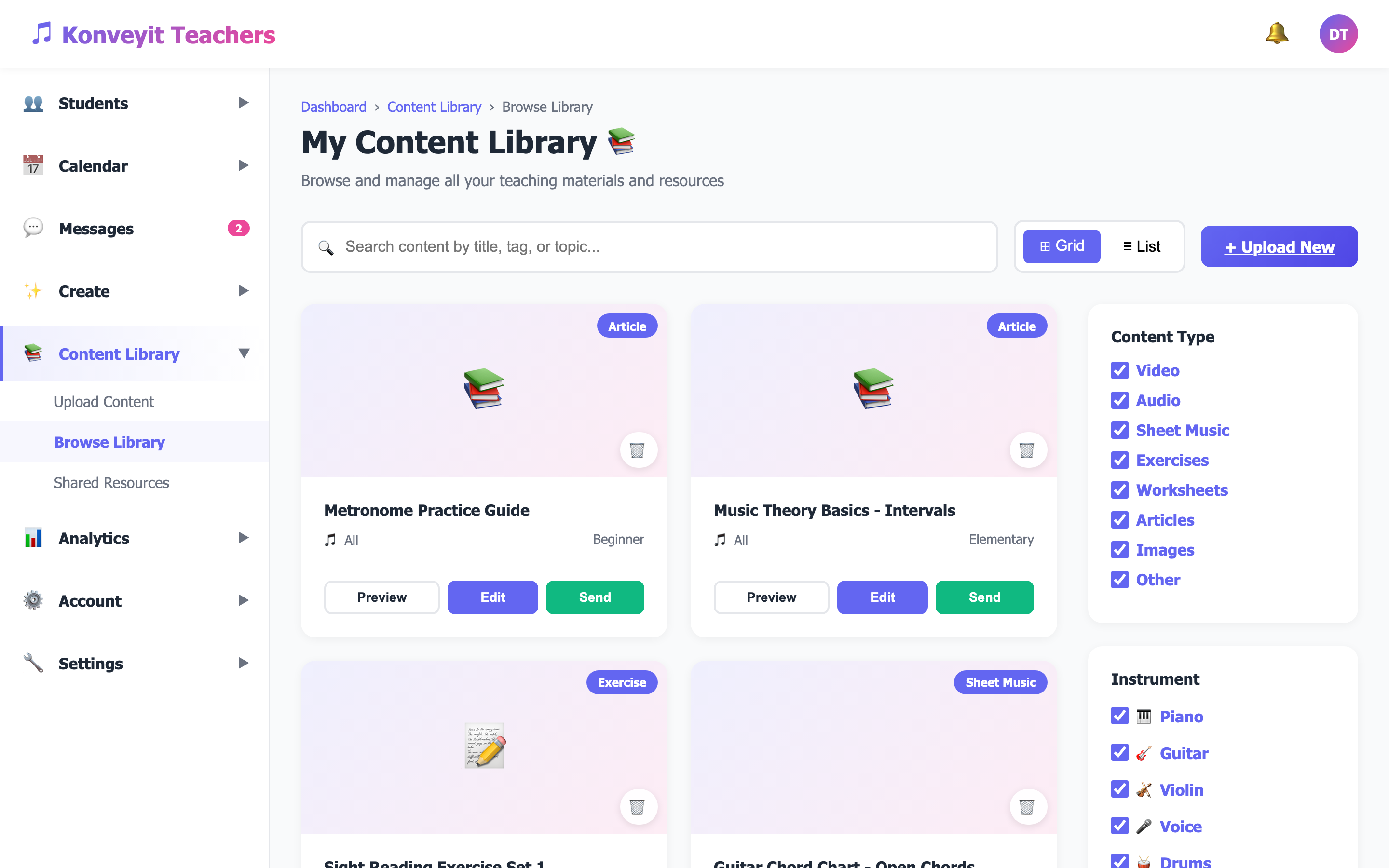
Tip: You can also add YouTube links directly — they'll be embedded and playable within the platform.